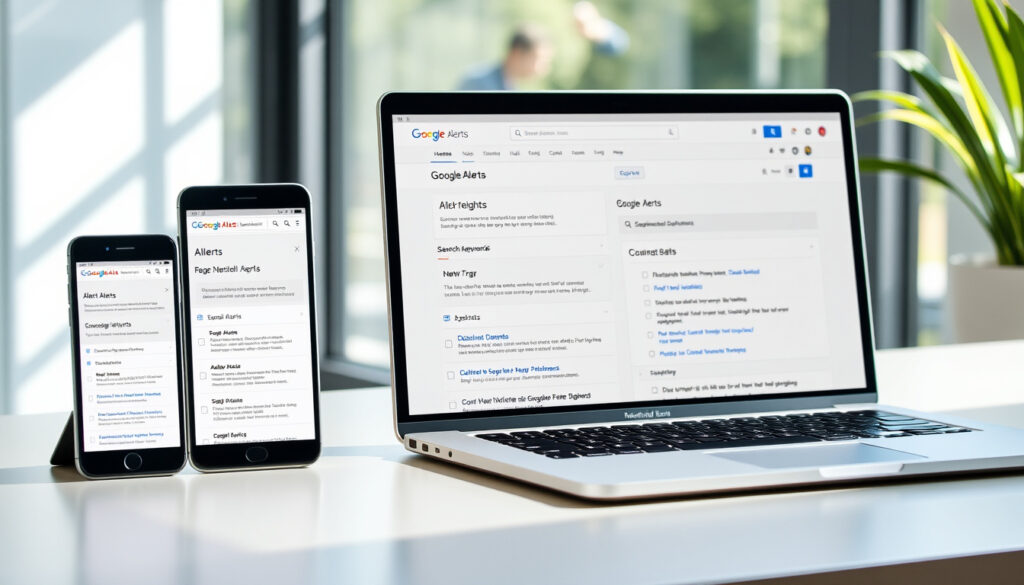
How to Set Up Google Alerts: Step-by-Step on All Devices
Google Alerts monitors the web for content matching your keywords and delivers fresh results straight to your inbox. The service is free, works across browsers on any device, and supports queries up to 32 words long.
Frequency Options: As-it-happens, Once a day, Once a week · Sources Available: News, Blogs, Web, Video · Delivery Method: Email updates, RSS feed · Cost: Free · Login Required: Google account
Quick snapshot
- Free to use (FlyRank)
- Email delivery (Cemoh)
- Web browser access at google.com/alerts (Google Search Help)
- Native iOS/Android app existence
- Maximum number of alerts per account
- Historical data retention duration
- First results arrive within a few hours (Cemoh)
- Historical results accessible via the dashboard (Daniel Rosehill on YouTube)
- Set up your first alert in under five minutes
- Customize frequency and source filters
- Monitor multiple topics simultaneously
| Label | Value |
|---|---|
| Official URL | google.com/alerts |
| Primary Function | Monitor web for new content via email |
| Customization | Frequency, sources (news, blogs, web, video) |
| Access | Google account login |
| Query Limit | 32 words maximum |
| Delivery Methods | Email, RSS feed |
What is Google Alerts?
Google Alerts is a free tool that notifies you by email whenever new online content matches keywords you’ve specified (FlyRank). The service monitors the web continuously and delivers updates based on your chosen frequency—anything from real-time alerts to once-weekly digests.
Google Alerts definition
At its core, Google Alerts functions as a web monitoring system. You enter keywords or phrases, and Google’s crawlers track when new content containing those terms appears anywhere online. The service then emails you a summary of matching results.
Key features from official sources
- Email notification when new content matches your keywords
- Customizable frequency: as-it-happens, once a day, or once a week
- Source filtering: News, Blogs, Web, or Video
- Language and region customization
- Boolean operators (OR, AND) for combining keywords
Mobile browsers work, but there’s no dedicated Google Alerts app for iPhone or Android. You access it the same way you would on desktop—by visiting google.com/alerts in Safari, Chrome, or Firefox.
Where are alerts on Google?
Google Alerts lives at a dedicated URL: google.com/alerts (Google Search Help). You don’t need to dig through Google Search or another product—direct access is available for any browser.
Accessing Google Alerts page
Visit google.com/alerts in your web browser. You’ll need to sign in with your Google account to create or manage alerts. The sign-in flow routes through Google’s standard account authentication at accounts.google.com (Google Search Help).
Dashboard overview
Once signed in, you see your active alerts listed with options to edit, delete, or add new ones. The dashboard shows each alert’s keyword, current settings, and recent delivery history. A preview pane lets you see what results your alert would match before finalizing it.
The implication: Google built alert functionality directly into its search infrastructure, making the same indexing power used for web search available for personal monitoring.
Are Google Alerts free to use?
Yes. Google Alerts is completely free. You need a Google account to sign in, but that account doesn’t require Gmail—any email address can be used to create a Google account (FlyRank). There are no premium tiers, no usage limits on alert frequency, and no advertising within alert emails.
Cost details
- No subscription required
- No per-alert fees
- No advertising in alert notifications
Account requirements
A standard Google account suffices. If you already use YouTube, Google Drive, or any Google service, you’re already signed in. New users can create an account at accounts.google.com using any email provider.
For journalists, marketers, and researchers, the zero-cost entry point means you can set up competitive monitoring without any budget approval. Five alerts or fifty—the price stays the same.
How do I set up Google Alerts on my iPhone?
Google Alerts works through your mobile browser on iPhone—no app required. Open Safari or Chrome, navigate to google.com/alerts, sign in, and create your alert the same way you would on a computer.
Mobile browser steps
- Open Safari or Chrome on your iPhone
- Go to google.com/alerts
- Sign in with your Google account
- Enter your keyword or phrase
- Choose frequency: as-it-happens, once a day, or once a week
- Select sources: News, Blogs, Web, or Video
- Click “Create Alert”
Notification settings
Google Alerts notifications arrive via email, not as push notifications. To manage them, open the Settings app on your iPhone, select Notifications, and find your email app. There you can control whether alert emails trigger badges, sounds, or banners.
What this means: If you’re looking for a standalone Google Alerts app in the App Store, you won’t find one. The mobile browser route is the only official path, and it works reliably once you bookmark the page.
Can I set up Google Alerts without Gmail?
Yes, you can use Google Alerts without a Gmail address. When creating a Google account, you can register with any email provider—Outlook, iCloud, your work email, whatever you prefer (Google Search Help). Your alerts will be delivered to that non-Gmail address instead.
Account options
- Existing Google account (Gmail or non-Gmail)
- New account with any email provider
- Single account for Alerts and other Google services
Sign-in process
Visit the sign-in page at accounts.google.com, select “Create account,” and choose “Use my current email address instead.” Google will send a verification code to your non-Gmail inbox, and you’ll set a password for your new Google account. Once verified, you can access Google Alerts and receive alert emails at your preferred address.
The implication: Google has deliberately decoupled its account system from Gmail specifically, making the service accessible to anyone with an email address regardless of provider.
How to Set Up Google Alerts: Step-by-Step
Six straightforward steps get you from zero to your first alert delivery.
- Open your browser — Any browser, desktop or mobile, works. Visit google.com/alerts.
- Sign in — Use your Google account credentials. If you don’t have one, click “Create account” and follow the prompts using any email address.
- Enter your keyword — Type the term you want to monitor. For multiple keywords, use OR or AND: “Apple OR Microsoft” tracks both simultaneously (FlyRank). Queries are capped at 32 words.
- Configure alert options — Set frequency (as-it-happens, once a day, or once a week), choose sources (News, Blogs, Web, Video), and select language and region preferences.
- Preview and create — The dashboard shows a preview of matching results before you finalize. Review and click “Create Alert.”
- Wait for delivery — First results typically arrive within a few hours depending on how frequently content matching your keywords appears online (Cemoh).
How do I set up Google Alerts for multiple keywords?
Google Alerts supports Boolean operators, letting you combine keywords in a single alert. Use OR to track either term: “climate change OR renewable energy.” Use AND to require both terms: “electric vehicles AND battery technology.” This approach is more efficient than creating separate alerts for every variation.
Advanced operator techniques
- Use quotes for exact phrases: “artificial intelligence” matches that exact term
- Exclude words with a minus sign: electric cars -Tesla
- Narrow results to specific sites with site: operator
- Combine operators: (“AI” OR “machine learning”) AND healthcare -research
If your combined query exceeds 32 words, split it into multiple alerts. Each focused alert will return more relevant results than one bloated query.
More operators mean more precision, but also more maintenance. Review your alerts every few weeks and prune any that return consistently irrelevant results. Google’s algorithms learn from what you click—and what you ignore.
Expert Perspectives
Google Alerts is a powerful tool that helps you stay on top of all the things that are important to you.
— Google News Initiative (Official Google Program)
Search queries are limited to 32 words. It might take a few hours for the first result to arrive, depending on the frequency and internet publishing patterns.
— Google Search Help Community (Official Google Support)
Setting up alerts with multiple keywords allows efficient monitoring of various topics simultaneously.
— FlyRank (Support Documentation)
What is better than Google Alerts?
For basic keyword monitoring, Google Alerts remains the no-cost standard. Alternatives worth considering include Google Search Help-linked services like Mention (which offers real-time dashboards and social media monitoring), Brand24 (with sentiment analysis), or Talkwalker (geared toward enterprise users). These paid tools add features like competitive benchmarking and API access—but come with subscription fees.
For casual monitoring—tracking your own name, a competitor, or a hobby interest—Google Alerts does the job without opening your wallet. The moment you need social mentions, image monitoring, or automated reporting, a paid alternative earns its cost.
Summary
Google Alerts puts web monitoring within anyone’s reach. The service is free, requires only a browser and any email address, and delivers results within hours of new content appearing online. Whether you’re tracking your personal brand, monitoring industry news, or keeping tabs on competitors, the setup takes under five minutes. For iPhone and Android users, the mobile browser is your only official option—there’s no dedicated app, but the browser experience is fully functional. For marketers and researchers, the real power lies in using Boolean operators and multiple focused alerts rather than broad queries. Start with one alert, refine based on what arrives, and scale up as your monitoring needs grow.
Related reading: Google Reviews by Me
youtube.com, youtube.com, youtube.com, seranking.com, youtube.com
Google Alerts excels at keyword monitoring, while configuring Google Calendar setup similarly organizes events seamlessly across your PC, Android phone, and iPhone.
Frequently asked questions
How do I set up Google Alerts on Android?
Open Chrome or your preferred browser on your Android device, navigate to google.com/alerts, sign in, and follow the same steps as desktop: enter keywords, choose frequency and sources, then create the alert.
Is Google Alerts still a thing?
Yes. Google Alerts remains active and free. While there is no dedicated mobile app, the service continues to operate through its web interface with regular updates from Google’s search infrastructure.
How do I set up Google Alerts for multiple keywords?
Use Boolean operators in your search query. Enter “Apple OR Microsoft” or “electric vehicles AND battery” to track multiple terms in a single alert. Remember the 32-word limit applies to combined queries.
How do I sign in to Google Alerts?
Visit accounts.google.com, enter your credentials, and you’ll be redirected to your Google Alerts dashboard. If prompted for a service, select “Search” or navigate directly to google.com/alerts after signing in.
What is better than Google Alerts?
For professional monitoring with sentiment analysis, social tracking, and API access, paid tools like Mention, Brand24, or Talkwalker outperform Google Alerts. For free basic monitoring, Google Alerts remains the best option.
How do I set up alerts on my phone?
Use your mobile browser (Safari on iPhone, Chrome on Android), go to google.com/alerts, sign in, and create your alert. There’s no separate app—bookmark the page for quick access.
How to set up News alerts on iPhone?
When creating your alert, select “News” as your source filter under the sources section. You’ll receive notifications only for news articles matching your keywords, not blog posts or general web content.
More related posts
 O Positive Blood Type: Facts, Benefits, and Common Questions
 Best Auto Insurance Companies in Ireland: Compare & Save 2025
 Cortes de Pelo para Niños 2026: Modern Hairstyles & Tips
 Cindy Lou Who Now: What Happened to Taylor Momsen
 Low Taper Textured Fringe: Complete Guide & Fade Options
 All Barbie Movies in Order: Complete List (2001–2022)
 Cast of Landman – Full Actors and Characters Guide
 Benefits of Castor Oil: Evidence-Based Uses and Safety